
We’ve all been there—you’re reading an article, watching a video, or scrolling through a webpage when suddenly, a flashy ad appears and breaks your concentration. Whether it’s banners, pop-ups, or auto-playing videos, online advertising has become an unavoidable part of the internet.
While many of us tolerate adverts or pay to remove them (hello, premium streaming!), there’s a smarter and safer way to enjoy a seamless online experience: adblockers.
At Alcom IT, we believe in empowering users with simple tools to stay safe and efficient online. In this blog, we explain what adblockers are, how they work, and why they’re an essential part of your digital toolkit.
An adblocker is a browser extension or standalone application that prevents unwanted ads from displaying on websites you visit. Once installed, it acts like a digital bodyguard—scanning web pages and filtering out any advertising content before it reaches your screen.
Whether you’re on Chrome, Firefox, or Edge, adblockers are widely compatible and quick to install.
When you visit a website, your browser loads its content—including images, text, scripts, and ads. Adblockers intervene by scanning the website in real time and blocking requests that match known advertising domains or patterns.
This means:
Adblockers work quietly in the background to ensure your browsing session remains uninterrupted and secure.
Yes, and here’s why: not all online ads are safe or even legitimate.
Even if you’re not bothered by the occasional ad, cybercriminals have found clever ways to use advertising space to deliver malicious content—especially on websites you trust.
Adblockers don’t just remove annoyance—they actively protect you from two major threats:
Short for “malicious advertising,” this technique involves hackers purchasing legitimate ad space on trusted websites. These seemingly normal ads then redirect you to phishing sites or install harmful software when clicked.
Adware is a type of malware that secretly installs itself on your device—often bundled with other downloads. Once active, it bombards you with intrusive ads, collects personal data, and compromises system performance.
With an adblocker, these threats are filtered out before they even appear, making your internet experience not only cleaner, but safer.
Blocking ads brings more than just peace of mind—there are somepracticaladvantages too:
Ads—especially video ads—can take up significant bandwidth. By blocking these elements, your browser loads pages quicker, leading to a faster, smoother experience.
If you’re on a mobile or limited internet plan, adblockers can reduceyourdataconsumption by preventing large ad files from downloading in the background.
Without flashy banners and autoplay videos competing for your attention, it’s easier to stayfocused on the task at hand—be it work, reading, or shopping online.
Websites often feel cluttered with advertising. Adblockers help to declutterpages, allowing content to shine and improving overall readability.
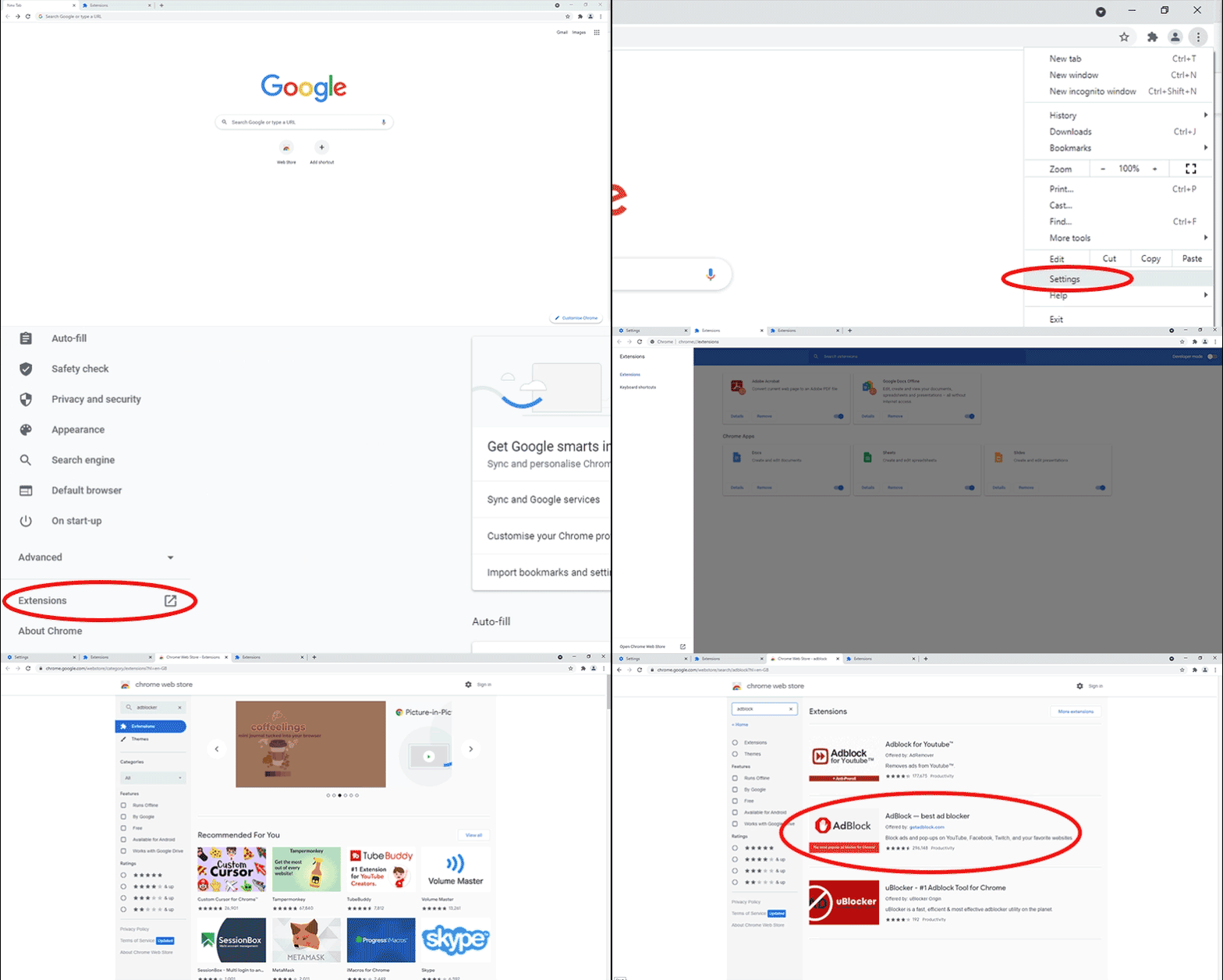
Installing an adblocker is quick, easy, and free. Follow these steps:
Once installed, you’ll notice fewer distractions almost instantly.
Top tip: Most adblockers allow you to whitelist websites you want to support. If there’s a site you trust that relies on advertising to stay running, you can allow ads just for them.
Windows 10’s End of Life in 2025: What You Need to Do Now
How to Protect Your Business from Ransomware Attacks
Understanding and Preventing Security Breaches in Your Business
At Alcom IT, we help individuals and businesses make the most of technology—safely and efficiently. Whether you need help installing an adblocker, improving your device security, or boosting your network speed, our expert IT support team is just a call away.
Say goodbye to annoying pop-ups and malicious adverts. Take control of your online experience today with a reliable adblocker and enjoy a safer, cleaner, and faster internet experience.Contact Alcom IT for help setting up your adblocker
Call us on 01908 760 000 for expert advice
If you’re looking to install an adblocker in Google Chrome click Settings > Extensions > Open Chrome Web Store > Search Adblock > Download your preferred Adblocker (see below)
Have another question we haven’t covered? Give us a call on 03333 055 055 and speak to one of our experts!

No comments yet.


Leave a reply...